Our kitchen needed one screen that showed the whole house at a glance: what's on the family calendar today, what's for dinner, the weather, whether the garage is open, and what's still on the to-do list. Ideally I could also tap it to turn off the lights or start music.
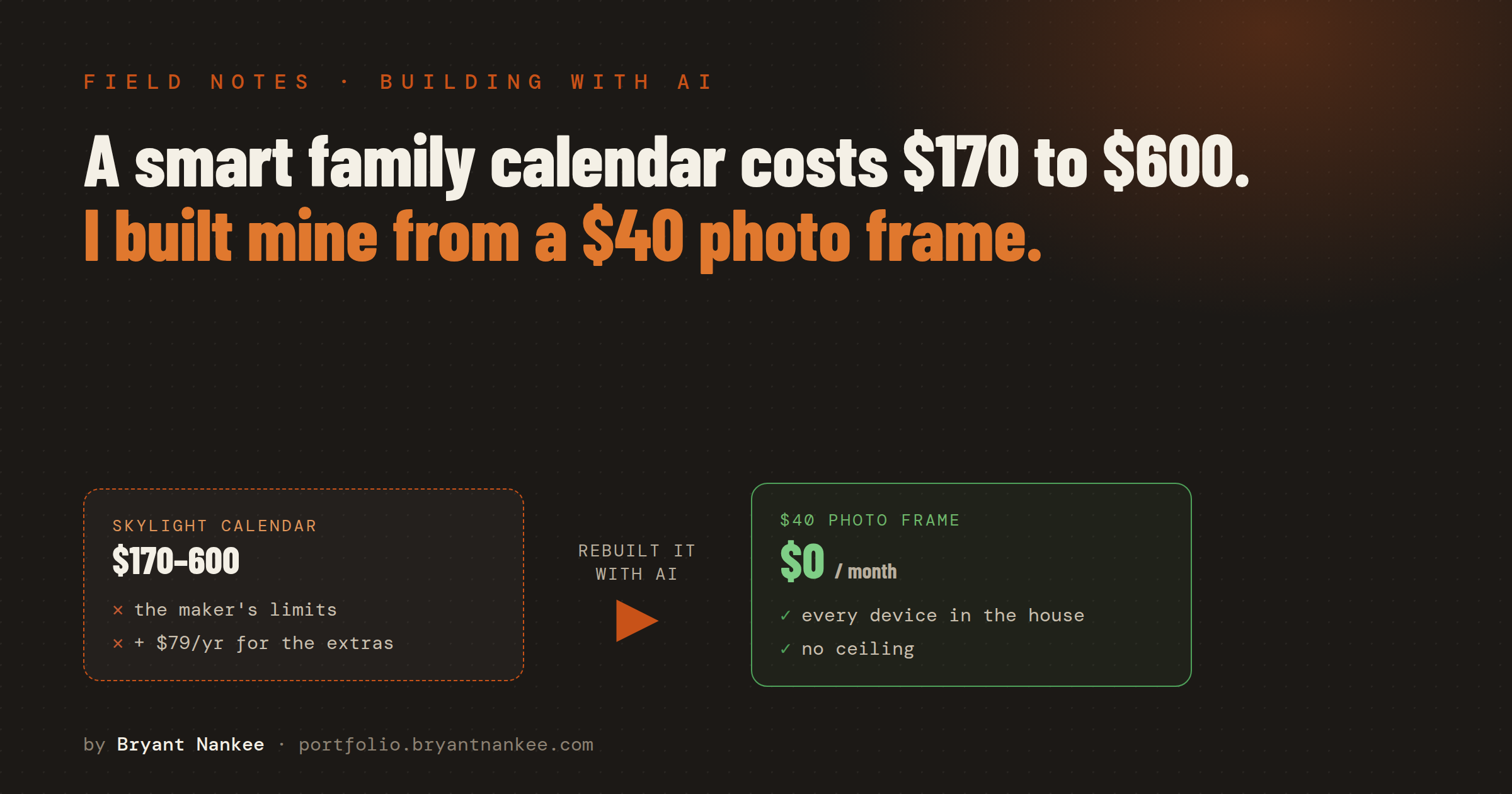
You can buy something close to that. The best-known, Skylight, sells its calendar screens for $170 (10-inch), $290 (15-inch) and $600 (27-inch), and its extra features need a $79-a-year Plus plan. Smart displays from the big tech companies are cheaper, but they show what their maker wants, and they only control devices that play nicely with that maker.
I bought a $40 Wi-Fi photo frame instead, the kind sold as a gift that shows pictures someone sends from an app. Under the plastic it's a small Android tablet with a touchscreen. A week later, we use it every day, and it does things none of the store-bought ones can.
The whyThe hardware was never the expensive part
A touchscreen, Wi-Fi and a stand cost very little to make. What you pay for in a premium smart display is the software, and with it the maker's decisions about what the screen is allowed to do. That's a fine deal if their decisions match your house. They rarely matched mine. My lights, smart plugs, speakers, garage door and car all come from different companies.
I already had the piece that ties those together. Home Assistant is free, open-source smart home software, and it runs on the home server I'd already built. It talks to nearly everything. What it lacked was a nice screen on the kitchen counter. So the question became: what's the cheapest decent touchscreen I can point at it?
What you pay for in a smart display is the maker's opinion about what it's allowed to do.
The hackA $40 frame, a public guide, and an AI doing the typing
I didn't figure this out alone. The developer Wes Bos published an open guide for turning this exact family of cheap frames into a dashboard, including a tiny app that replaces the frame's home screen with a web page of your choosing. I handed the guide to my AI agents and worked through it with them.
The frame came running its maker's photo app, which phones home to the maker's cloud and checks for updates of its own. The agents backed up the frame's full software first, so I could put it back the way it came. Then they turned off the maker's apps and update services and set the replacement home screen to open my dashboard. From then on, the frame boots straight to my page. I'm not going to go deeper than that here. The guide covers the how, and none of it is something you'd want to do to a device you can't afford to lose.
Designing for the kitchen, not the spec sheet
Home Assistant comes with dashboards, but they look like a control panel for an engineer. I wanted something that felt like it belonged in a kitchen: warm, readable from across the room, and calm when nobody's touching it. So before writing any code, I had AI mock up a few directions, picked one, and then had it built for real.
Here's what's on it today:
- Today, at a glance. Weather, and the family calendars color-coded by person, scrolling day by day.
- Dinner. Tap to put a dinner on the shared calendar, with a few quick picks for the meals we make most.
- To-dos. The top open items from the same task list my phone and my AI agents use. Tap a circle to check one off, or add one from the counter.
- Home buttons. The garage door, the living room lights with a dimmer, an "all off" button, and one that warms up the car on a cold morning.
- Music. Play our favorite playlists in the kitchen, on the whole first floor, or everywhere, with a now-playing card and volume.
- Power. A page showing what's using electricity: the basement freezers, the washer, and what it costs to charge the car versus filling up with gas.
- Photos. After five minutes untouched it becomes what it was sold as, a photo frame, and it dims at night. Dropping a picture into a folder on my computer adds it to the rotation.
The same dashboard also opens on my phone, laid out for a narrow screen, so it doubles as a remote for the house.
The fixes you only find by living with it
The first version worked on my laptop and looked wrong on the counter. Most of the real work came after that, one annoyance at a time, each described to the AI in a sentence:
- "The text is too big." The frame's maker had quietly set Android's font size 15% larger than normal, which inflated everything on my page. Setting it back fixed every screen at once.
- "It scrolls into blank space." The page was a few pixels taller than the screen, so a swipe would drift it off the bottom. The AI locked the layout to the frame's exact size.
- "Half-swipes leave it stuck between pages." Now a swipe has to travel far enough to count, and the page always snaps to a whole screen.
- "The emoji in calendar events look broken." The frame's old Android can't draw modern emoji, so the dashboard strips them out.
- "After a power outage it came back blank." The frame booted faster than our Wi-Fi did. The page now checks itself a few seconds after loading and reloads if anything is missing.
I also made sure some things can't be done from the screen. Our basement freezers run through a battery backup that Home Assistant can switch off. That switch is deliberately nowhere on the dashboard. A kitchen screen is exactly where a stray elbow will eventually land.
Every fix started as one sentence about something that bugged me.
One more thing made all of this painless: the dashboard updates itself. When the AI ships a change, every open screen notices within a few minutes and reloads. I never have to touch the frame to update it.
The payoff$40 vs. $170 and up, and no ceiling
The hardware cost $40. A 10-inch Skylight, the same size as my frame, is $170 before the $79-a-year plan. Mine has no yearly fee, because there's no company in the middle. Home Assistant is free, and the server was already running.
The bigger difference is that there's no ceiling. A store-bought display does what its maker decided. Mine does whatever I can describe, and it works with anything Home Assistant can reach, which is almost everything. When I add a smart plug, it can show up on the screen. When something on the dashboard annoys me, it gets fixed that evening.
And because the frames are $40, I don't have to stop at one. The plan is a few more around the house, each showing the controls that matter in that room: the lights, plugs and appliances there, plus the power monitors, all running the same dashboard.
This is a hobbyist build, not a product. The frame runs a very old version of Android, and I'm its only support line. When our router restarted recently, several smart plugs came back at new network addresses and dropped off the dashboard until I fixed the router settings. Some newer smart plugs use encryption Home Assistant can't speak yet, so not every device works on day one. If the frame ever breaks, I have a full backup of its software, but restoring it is a project, not a button. For most families, a Skylight is the better choice: you plug it in and it works. I wanted the version with no limits.
Cheap hardware plus good software beats expensive hardware
Like skipping Tesla's $350 garage add-on, this one came down to separating what I was paying for. Expensive smart home gear bundles a screen with the maker's software and the maker's limits. Buy the screen cheap, bring the software from free tools, and let AI do the part that used to need a developer.
Customizing your own smart home dashboard used to mean weekends of web development. Now it means describing what you want and testing it on the counter.